You may follow the steps below this box.
Download it:
Please double-check that the selected model is the Garmin watch you have”
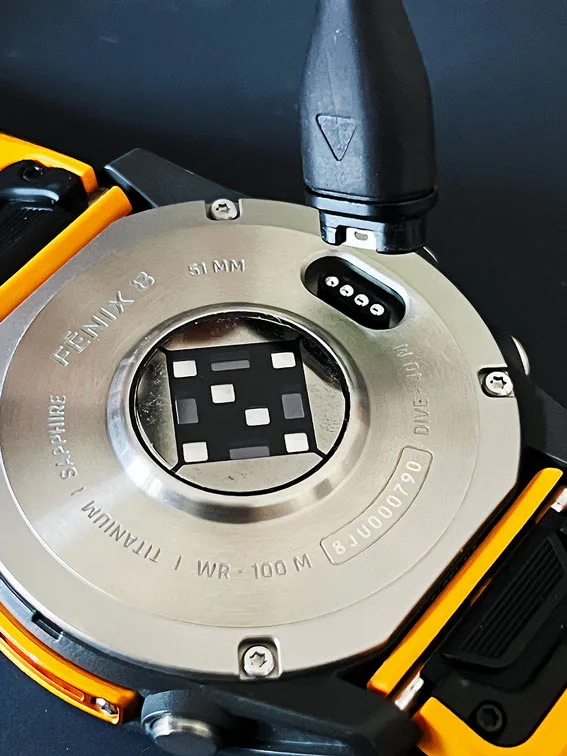
1 – Connect your watch to your PC using the Garmin USB cable and wait for it to appear.
(Once you connect it, a message saying “Use MTP (Media Transfer)?” might appear on the screen; press Ok.)
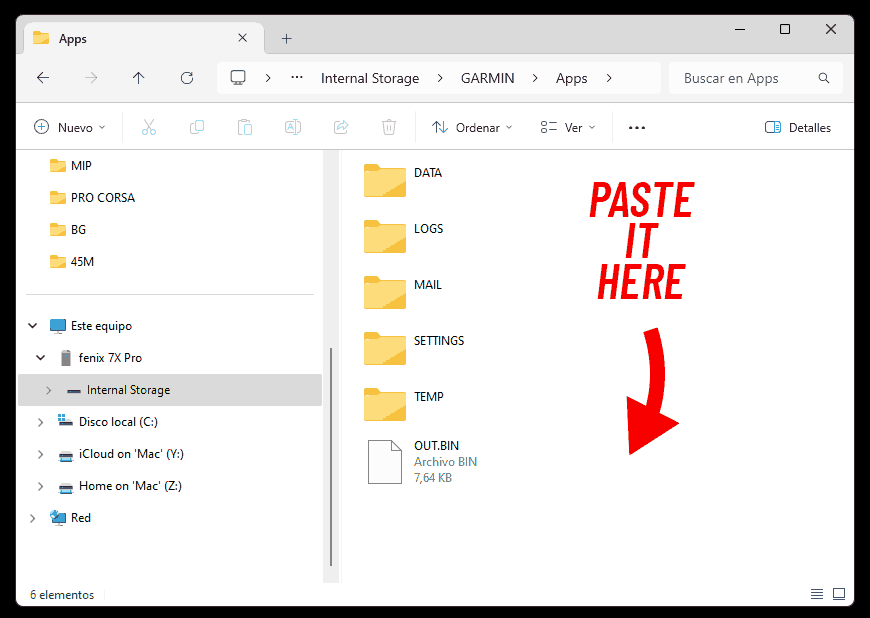
2 – Once it appears, go to “Internal Storage.”
3 – Open the folder “GARMIN.”
4 – Open the folder “Apps.”
5 – Paste the file “xxxxx.prg” in this location (inside the “Apps” folder).
That’s it!
Macs don’t recognize Garmin watches when connected via USB, so you’ll need an app that does detect the watch and lets you access its folders to copy and paste the watch face into the device.
For this, I recommend using the free app OpenMTP.
Download it here: https://openmtp.ganeshrvel.com/
1 – Download and install the OpenMTP app on your Mac. Don’t worry, it’s safe—you can check the reviews on its link.
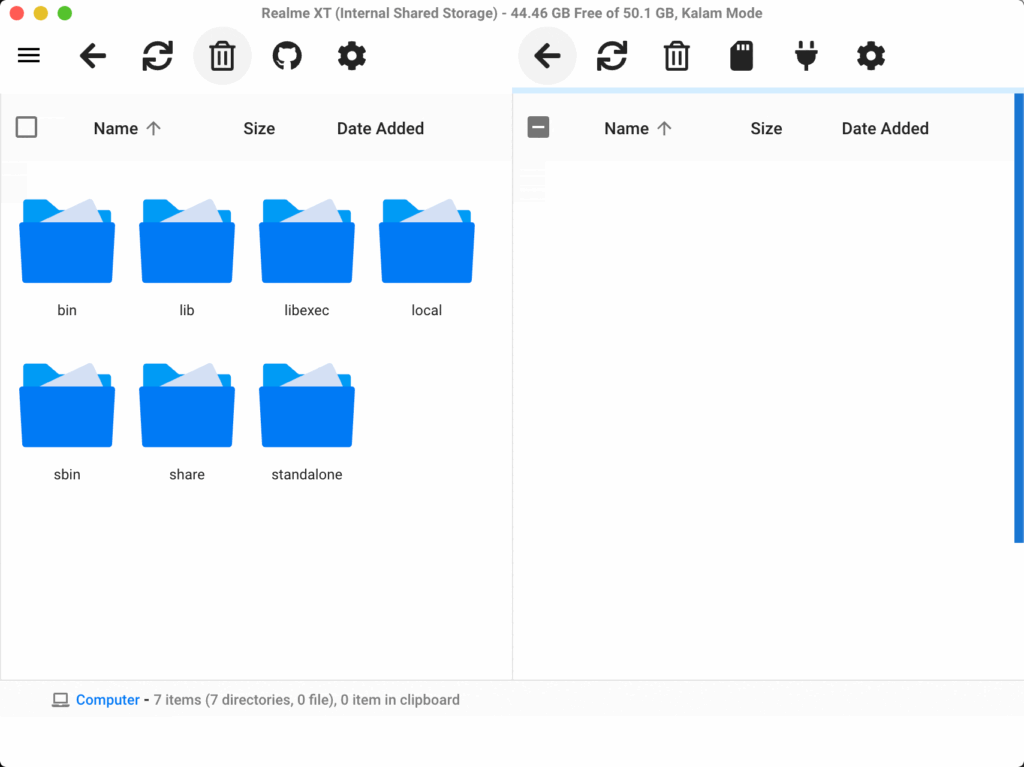
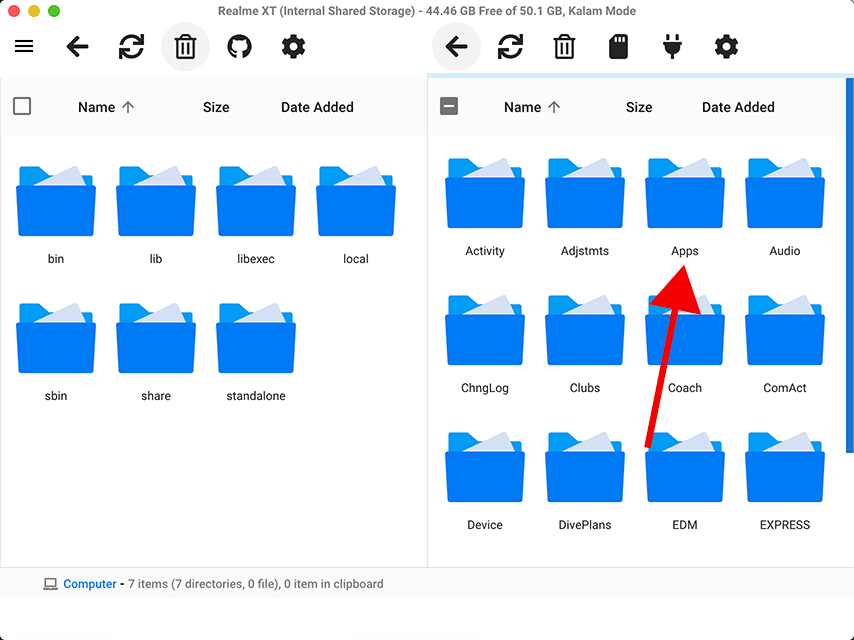
2 – Open OpenMTP, it looks like this:
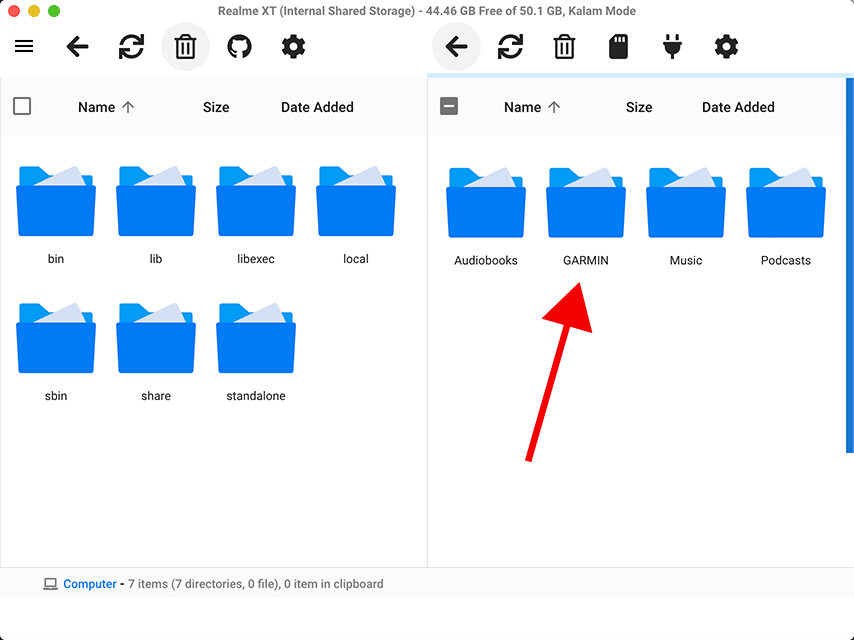
3 – Connect your watch to your Mac using the Garmin USB cable and wait for it to appear on OpenMTP on the right side after few moments.
(Once you connect it, a message saying “Use MTP (Media Transfer)?” might appear on the screen; press Ok)
4 – Enter the “GARMIN” folder.
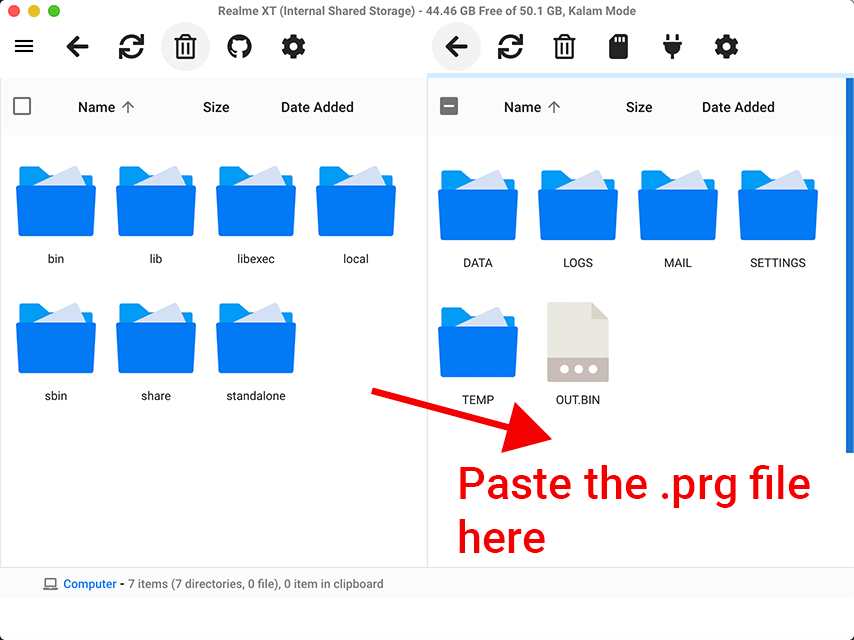
5 – Enter the “Apps” folder
6 – Paste the file “xxxxx.prg” in this location (inside the “Apps” folder).
Disconnect your watch from the USB cable, and that’s it!The watch face will activate after a few seconds.
Simply uninstall it from your watch by going to Watch Dial > Edit > Delete.
Some Garmin models, like the Epix 2 Pro Gen 2, don’t have the “Delete” option. In that case, you’ll need to use Garmin Express.
If you’re unable to remove the watch face directly, follow these steps:
Uninstalling via Garmin Express (if you don’t have it, download it from Garmin’s website)
If this is your first time using Garmin Express, the only extra step is to log in and add your Garmin watch to the app.